Battery Optimization with iOS 18: Tricks That Work

Adverts
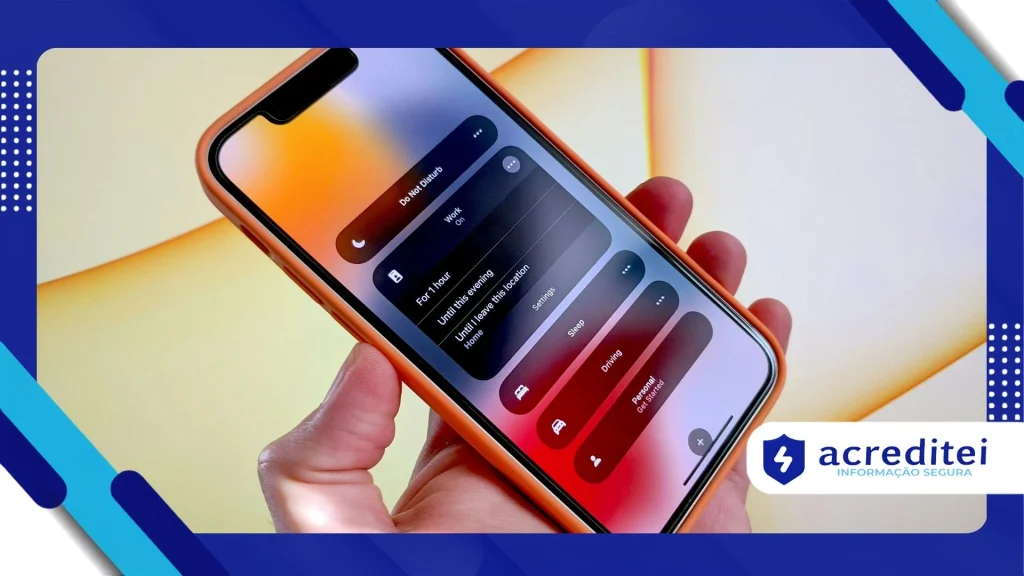
A battery optimization with iOS 18 It’s more than a necessity — it’s actually an art that combines smart technology, strategic adjustments, and conscious habits.
With the release of iOS 18 in September 2024, Apple brought innovative features such as advanced Home Screen customization, optimized Gaming mode, and integration with Apple Intelligence.
However, it's important to note that users report that early updates like version 18.4 can drain battery due to background processes.
The good news, however, is that there are practical and effective tricks to maximize the autonomy of the iPhone, transforming it into a device that keeps up with you without asking for a power outlet every few hours.
Adverts
In this article, therefore, we will explore smart techniques, based on data and real examples, to ensure that your iPhone with iOS 18 goes beyond what is expected.
Why iOS 18 Battery May Challenge You?
System updates like iOS 18 are like a new car: shiny, full of features, but they require a period of adjustment.
During the first few weeks after the update, your iPhone performs intensive tasks such as data indexing and battery recalibration.
According to ZDNet, these activities can increase energy consumption for up to 48 hours after installation.
Additionally, new features like Game Mode and Control Center customization require more processing power, especially on older models like the iPhone 11 or XS.
But do you really need to resign yourself to charging your phone twice a day? Absolutely not.
With strategic adjustments, it is entirely possible to balance performance and autonomy.
Example 1: The iPhone 14 Pro Case
Imagine Anna, a marketing professional who updated her iPhone 14 Pro to iOS 18.
Excited about the new organization of the Photos app and the text effects in iMessage, she noticed her battery dropping from 100% to 40% before 4 p.m.
After applying the tricks we'll share, such as disabling background updates and adjusting adaptive brightness, Ana was able to extend the battery life to a full day, even with heavy use of social media and emails.
Essential Tricks for Battery Optimization with iOS 18
1. Activate Low Power Mode Strategically
Low Power Mode, which was introduced in iOS 9 and improved in iOS 18, is like a handbrake on power consumption.
It reduces animations, screen brightness, and background activities like iCloud syncing.
In iOS 18, you can turn it on automatically in Settings > Battery when the charge reaches 20% or 10%.
For finer control, you can, for example, create a shortcut in the Shortcuts app to activate the mode at specific times, such as during long meetings.
Table 1: Impact of Low Power Mode in iOS 18
| Resource | Enabled | Disabled |
|---|---|---|
| Screen Brightness | Reduced | Automatic |
| Background Update | Off | Active |
| System Animations | Minimum | Complete |
| iCloud Sync | Paused | Continuous |
Practical tip: Plus, combine Low Power Mode with Dark mode to save even more on OLED displays like the iPhone 14 Pro or 16.
+ How to Protect Your Children in the Digital World
2. Manage Background Updates Accurately
Apps that update content in the background, such as Mail or social networks, are silent battery vampires.
In iOS 18, go to Settings > General > Background App Refresh and select “Wi-Fi” or “Off” for less critical apps.
For example, you can turn off updates for games or news apps that you only open sporadically.
Apple research (2023) revealed that disabling this feature can save up to 15% of battery life in daily use.
3. Take advantage of Optimized Charging
The Optimized Charging feature, which has been present since iOS 13 and was refined in iOS 18, uses machine learning to limit charging to 80% during long periods of plugging in, thus reducing battery wear.
In iOS 18, you can set manual limits (80%, 85%, 90%) in Settings > Battery > Battery Health & Charging.
This feature is ideal for those who leave their iPhone charging overnight.
Analogy: Think of the battery as a rubber band.
Constantly stretching it to 100% or letting it go to zero weakens it over time.
Optimized Loading therefore keeps the elastic at the ideal tension, extending its useful life.

New iOS 18 Features That Impact Battery Life
iOS 18 introduced features that, while amazing, can be demanding.
Game Mode, for example, optimizes graphics performance but disables background processes to prevent overheating.
Additionally, Apple Intelligence, available starting with iOS 18.1 on models with the A17 Pro chip or higher, consumes more power when processing AI tasks locally.
To mitigate this, it is recommended to adjust the settings for each feature.
4. Configure Game Mode Smartly
If you're a gamer, iOS 18's Game Mode is a blessing as it reduces audio latency with AirPods and stabilizes frame rates.
However, it also drains battery during long sessions.
Go to Settings > General > Game Mode and turn it off when you're not playing.
This prevents the processor from operating at high performance unnecessarily.
5. Reduce the Impact of Apple Intelligence
Apple Intelligence, which includes features like a more natural Siri, requires processing power.
So, to save battery, limit your usage in Settings > Apple Intelligence & Siri, disabling functions like proactive suggestions in third-party apps.
On models like the iPhone 16, this can make the difference between ending the day with 20% or 5% of charge.
++ Data leaked? Here's how to check and react quickly
Screen and Connectivity Adjustments
6. Master Adaptive Brightness
Screens are the biggest consumers of battery.
In iOS 18, adaptive brightness uses ambient light sensors to automatically adjust brightness.
Go to Settings > Display & Brightness and turn on the feature.
For extra savings, reduce the auto-lock time to 30 seconds.
7. Manage Wireless Connections
Wi-Fi and Bluetooth are essential, but can drain power if misconfigured.
In iOS 18, satellite connectivity (iPhone 13 and later) and enhanced Bluetooth for accessories increase power consumption.
Turn off Bluetooth in Settings > Bluetooth when you're not using your AirPods or Apple Watch.
Additionally, for Wi-Fi, prefer 5G networks only in areas with a strong signal, adjusting in Settings > Cellular.
Table 2: Estimated Connection Consumption on iOS 18
| Connection | Consumption per Hour (mAh) | Optimization Tip |
|---|---|---|
| Wi-Fi | 20-30 | Use known networks |
| 5G | 50-70 | Switch to 4G on weak signal |
| Bluetooth | 10-15 | Disable when not needed |
| Satellite | 100-150 | Use only in emergencies |

Example 2: The Multitasking Student
Lucas, a college student, uses his iPhone 15 for online classes, note-taking, and social media.
After updating to iOS 18, he noticed that the battery didn't last until the end of the day.
However, by disabling automatic Mail sync, reducing screen brightness, and using Low Power Mode during classes, Lucas ended the day with 30% of charge, even with heavy use.
User Habits: The Deciding Factor
A battery optimization with iOS 18 It doesn't just depend on settings.
Your habits are crucial.
For example, avoid leaving your iPhone in hot environments, such as inside a car in the sun, as heat accelerates battery degradation.
Also, choose original or MFi certified chargers to avoid damage.
An alarming statistic: According to Apple, 80% of users charge their iPhones overnight, which can reduce battery life by up to 20% after two years.
8. Restart Periodically
Restarting your iPhone once a week closes background apps and clears RAM, improving energy efficiency.
On iOS 18, this is especially useful after updates like 18.5 that fixed power consumption bugs.
For more information on battery optimization, you can visit the Apple.
The Future of Battery Optimization with iOS 18
Apple has already signaled that iOS 19, scheduled for 2025, will bring an AI-based battery management mode, analyzing usage patterns to dynamically adjust consumption.
Until then, the tricks presented here ensure that the battery optimization with iOS 18 be accessible and effective.
The question is: are you ready to turn your iPhone into a long-lasting ally, or will you continue to run after a power outlet?
Conclusion: Battery that Keeps Up with Your Life
Master the battery optimization with iOS 18 It's about balance: taking advantage of the system's incredible features without sacrificing autonomy.
With settings like Low Power Mode, connection management, and mindful habits, your iPhone can last all day — and beyond.
So, test these tips, adapt them to your usage and see the difference.
After all, an iPhone with optimized battery is not just a device; it is, above all, the freedom to live without interruptions.