Hidden Android Gestures You Need to Start Using Today
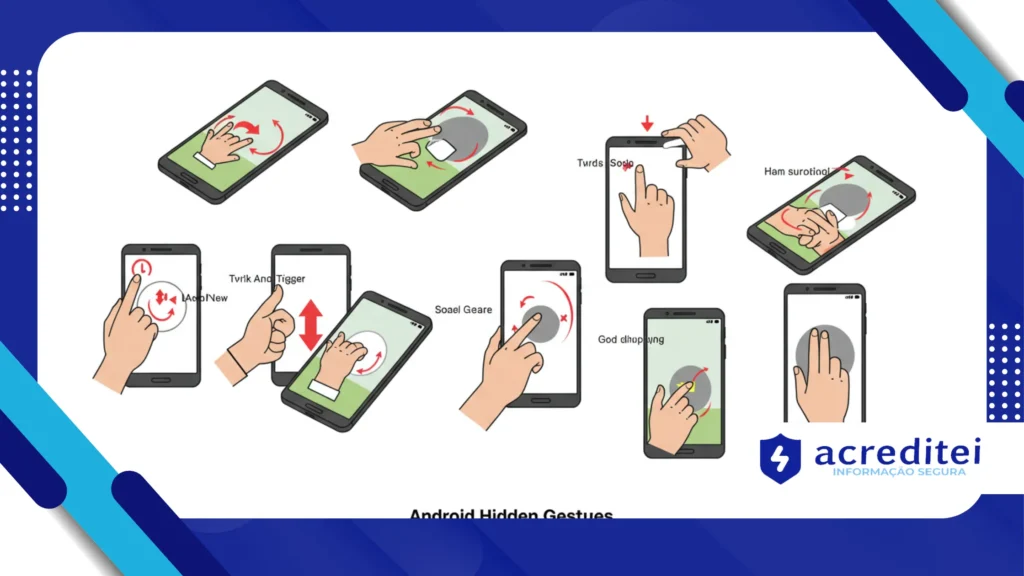
Adverts
Did you know that many of the hidden Android gestures are transforming how we interact with our smartphones, but continue to be ignored by most users?
This lack of exploration is limiting your potential for productivity, fluidity, and personalization in your daily life.
In this article, you'll discover hidden features that make using Android more intuitive, speed up routine tasks, save time, and protect your device's physical components.
We'll explore everything from the evolution of gestures, their practical advantages, a comparison with traditional buttons, and an overview of the future of mobile device interaction.
Adverts
The Quiet Revolution on Android: Are You Taking Advantage?
With the arrival of Android 9 Pie, Google took an important step towards making the mobile experience more fluid by officially introducing gesture-based navigation.
The goal was clear: eliminate the rigidity of the three bottom buttons and create a more dynamic system. Yet, many features remained hidden, configurable, but little publicized.
In a world where time has become one of the most valuable assets, small actions like opening recent apps, locking the screen, or taking a screenshot can be done with a simple gesture.
And this is no exaggeration: a study of App Annie showed that the average user touches their smartphone 2,617 times a dayImagine the impact of saving seconds on each of these interactions.
+ Benefits of putting a password on your phone apps — even with a screen lock
Why do most people still ignore these gestures?
The main reason is that many of these gestures are not enabled by default and are “hidden” in unintuitive menus in the settings.
Additionally, custom interfaces from brands like Xiaomi, Samsung, and Motorola add (or hide) functionality in different ways, which creates confusion.
Another factor is attachment to traditional navigation. If you grew up using buttons, adapting to gesture navigation may seem uncomfortable at first.
But this is temporary. Usability studies show that after three days of continuous use, most users no longer want to go back to traditional buttons.
+ How to activate Focus Mode and boost your productivity on iPhone
Smart Touches: What Can You Do with Hidden Gestures?
By diving into the system settings, you can enable commands like:
- Swipe down with three fingers to capture the screen, something common in brands like OnePlus and Xiaomi.
- Double tap on the off screen to turn on or lock the device.
- Pull with two fingers from top to bottom, activating split screen mode in seconds.
- Swipe sideways on the bottom edge to switch between open applications.
Those hidden Android gestures They're not just practical. They contribute to the device's ergonomics, prevent wear and tear on physical buttons, and make the experience much more intuitive.
Proven efficiency: see the comparison
Let's make a real comparison between traditional buttons and hidden gestures:
| Action | Traditional Buttons | Hidden Gestures |
|---|---|---|
| Access multitasking | 2 clicks or long press | 1 swipe up and hold |
| Take a screenshot | Power + Volume Button | Swipe three fingers on the screen |
| Lock the screen | Press side button | 2 taps on screen off |
| Switch between apps | Tap on the last used app | Slide sideways |
| Split screen | Open app > menu > split | Pull with two fingers |
More freedom, less friction: the benefits of gestures
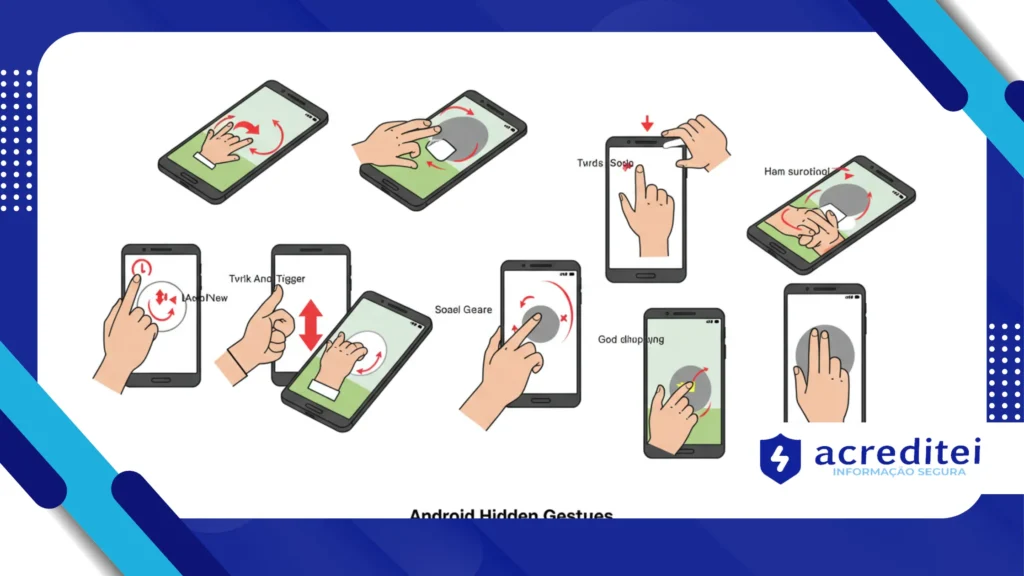
By using gestures instead of buttons, you're adopting a navigation style that promotes fluidity, reduces interaction time, and avoids repetitive movements.
It's not just a matter of preference: it's a choice that optimizes your time.
In professions where cell phones are a work tool, such as digital marketing, logistics, or customer service, these savings make a difference.
Imagine, for example, a financial analyst accessing three apps simultaneously with split screen using just two fingers. This represents agility and focus.
+ 10 Little-Known Android Settings That Can Transform Your Experience
A simple analogy: using gestures is like having a mental remote control
To use hidden Android gestures It's like swapping an old light switch for a voice-activated lighting system: both work, but one elevates your experience.
Gestures transform the way you “ask” your device to act.
And this isn't futurism: it's reality. Android 15, officially arriving in September 2025, will bring the ability to create custom gestures based on usage patterns with AI support.
AI Integration with Gestures: What to Expect
With the advancement of artificial intelligence on Android, especially with the consolidation of Google Gemini AI, gestures are beginning to adapt to the user.
AI learns usage habits and suggests tailored gestures.
For example, if you usually open Spotify and Google Calendar every day at 9 am, the system may suggest a specific gesture to open both in split screen.
This integration transforms the device into a smart extension of your routine.
Where to find and activate hidden gestures
Not all Android models offer the same features, but most allow customization via:
Settings > System > Gestures
There, you will find:
- Gesture navigation
- Gestures for screenshot
- Lift to activate
- Turn to mute
- Swipe to open camera
If your model doesn't offer some of them, apps like Fluid Navigation Gestures or One-Hand Operation+ (Samsung) also allow custom actions.
For detailed documentation, please visit the official Android website and check out the updated options by model.
The future is at your fingertips
As device design evolves, moving towards larger screens and fewer physical elements, gestures become the natural bridge between user and system.
More than just a fad, they are the most ergonomic, efficient and safe way to go.
Adopt these hidden Android gestures It is not only a smart decision, but also a sign of personal fulfillment.
After all, who wants to be left behind when technology is pushing us forward?
If you want to explore these features further, the channel Android Central on YouTube provides video tutorials with practical applications for different devices.
Frequently Asked Questions
1. Do hidden gestures work on all Androids?
Not all. Most are available from Android 9 onwards, but this varies depending on the manufacturer's interface. Models like Pixel, OnePlus, and Galaxy tend to be more complete.
2. Do gestures replace physical buttons?
Yes. They replace or complement buttons, offering more fluid navigation. Some devices allow you to hide the navigation bar completely.
3. Is there a risk of triggering something accidentally?
Unlikely. Most gestures require well-defined movements to avoid errors. However, sensitivity can be adjusted in the settings.
4. Can I create my own gestures?
Not yet natively available on all Androids, but third-party apps allow customization. Android 15 promises full integration.
5. Do they affect the battery?
Practically not. Since they're part of the system interface, power consumption is minimal. Using gestures can even save energy by reducing unnecessary touches.