How to use data saving mode on Android and iPhone
Adverts
Modern digital life depends on a stable and affordable connection, but we can't always keep our internet consumption under control.
Background apps, automatic updates, and high-quality streaming can quickly drain your data plan.
This is where learning comes in. How to use data saving mode on Android and iPhone becomes an essential strategy.
More than just reducing costs, this feature helps extend the life of your internet plan, improves device performance, and ensures that only truly important apps use mobile data.
Adverts
In this article, we'll explore in depth how to enable and leverage this setting in different scenarios, with practical tips, recent research, and expert insights.
Many users are unaware that this feature is already built into their systems, which causes them to continue spending more than necessary. Besides saving money, the feature offers more conscious control over how apps behave, giving users greater autonomy.
What is Data Saver Mode and Why is it Important?
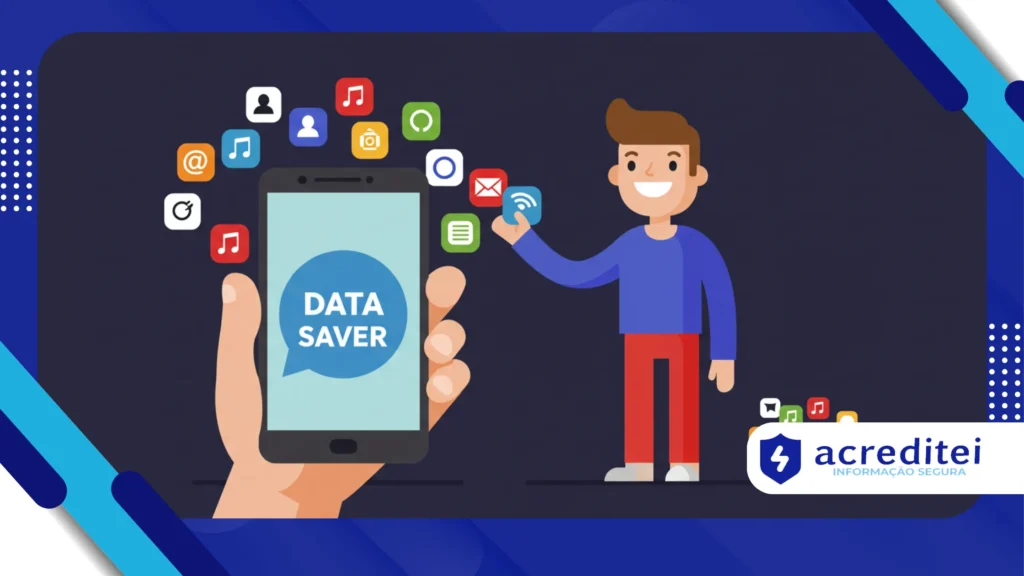
Data saving mode is a feature that limits background internet usage and prioritizes only essential applications.
This means that while you're using WhatsApp, for example, other apps like Instagram or Spotify won't invisibly use up data.
According to a Statista survey in 2024, around 42% of global smartphone users said their monthly data plan is not enough for their current video and social media consumption.
This statistic reinforces the relevance of the resource, especially in countries like Brazil, where unlimited data packages are still expensive.
Additionally, digital security experts point out that data saving mode can reduce the attack surface of malicious applications that try to send or receive information in the background.
In other words, it goes beyond simple financial control and also contributes to privacy.
Another important point is predictability. Users who activate this feature have greater control over how long their data plan lasts, avoiding situations where they're disconnected before the monthly renewal.
In an increasingly connected world, where even banking services depend on the internet, this predictability is valuable.
+ iOS 26: Six features to use in Apple's new system for iPhone, iPad and Mac
How to enable data saving mode on Android
Basic system adjustments
On Android, the path may vary depending on the manufacturer (Samsung, Motorola, Xiaomi, etc.), but the general process is similar:
- Open Settings.
- Tap on Network and Internet or Connections.
- Select Data usage.
- Activate the option Data economy.
Once enabled, Android automatically restricts app activity that consumes internet unnecessarily.
Email notifications, feed updates, and syncs are delayed until you resume using the app.
It's worth noting that Google has been improving this feature with each system update.
In newer versions, Android even displays detailed data savings reports, showing how much was saved during the usage period. This gives the user a clearer picture of the feature's real benefits.
+ 5 tips to make your cell phone faster in just a few minutes
Advanced settings per application
What's unique about Android is that you can allow exceptions. For example, if you need to receive WhatsApp notifications in real time, you can allow it to use data in the background even with the mode enabled.
Just enter App Settings > Data Usage and release manually.
This flexibility is especially useful for professionals who rely on communication apps or parents who want to ensure educational apps take priority without maxing out their data plan.
Another practical scenario: those who use mobility apps, such as Uber or 99, can allow exceptions to avoid communication errors with drivers.
At the same time, entertainment apps like TikTok can be blocked to save time. This personalization helps align technology with real-life routines.
+ How to Know if an App is Consuming Too Much Mobile Data
How to Enable Data Saver Mode on iPhone
Native iOS features
On iOS, the feature is called Reduced Data Mode. The process is simple:
- Go to Settings.
- Tap on Cell phone.
- Select Cellular Data Options.
- Activate Reduced Data Mode.
Unlike Android, iPhone applies the restriction more uniformly, automatically reducing background updates and limiting video quality in FaceTime calls.
This consistent standard provides peace of mind for those who don't want to worry about configuring each app individually.
Additionally, Apple often adjusts the feature to work seamlessly with other systems, such as iCloud, ensuring that backups are delayed until the device is on Wi-Fi.
Adjustments for different types of use
iPhone users can also apply the feature to specific Wi-Fi connections. This is useful on shared networks, such as those at schools or coffee shops, where each connected device impacts overall speed.
A survey conducted by the company OpenSignal in 2023 showed that, on congested networks, activating data saving mode on iOS can improve the browsing experience by up to 18%, as the system optimizes resources for essential tasks.
Another important detail is that the feature can also help in international roaming situations.
If you're traveling, turning on Low Data Mode ensures that apps don't consume expensive data in the background, saving you both data and your budget.
Comparison: Android vs iPhone
When analyzing the two systems, we realize that both offer benefits, but with different approaches.
- Android: More flexible, allows exceptions per application.
- iPhone: More integrated, it even optimizes calls and Wi-Fi connections.
In terms of usability, users who want maximum customization tend to prefer Android, while those seeking simplicity and consistency are better suited to iOS.
Another factor is the learning curve. Android users need to spend a few minutes setting up exceptions, but in return, they gain greater control.
On the iPhone, activation is immediate, but the user cannot waive certain limitations imposed by the system.
Real advantages and limitations of the resource
Among the main advantages are:
- Extends your mobile data package.
- Ensures greater autonomy when traveling or in places with unstable connections.
- Increases privacy by reducing invisible traffic.
- Improves device performance by reducing background processes.
On the other hand, some limitations must be considered:
- Notifications don't always arrive in real time.
- App updates may be delayed.
- Streaming and social media may lose display quality.
Still, experts from portals like TechRadar reinforce that, when used strategically, the feature can save up to 20% of monthly data consumption for an average user.
Another point is that, contrary to popular belief, this savings doesn't affect critical tasks. Calls, messages, and browsing continue to function normally.
The restrictions focus on what really weighs on consumption: constant synchronizations and heavy updates.
Practical examples and use cases
Imagine you're traveling to the countryside, where 4G signal is limited and expensive. Enabling this feature ensures that only your GPS and WhatsApp use the internet, while other apps wait.
Another example is in corporate environments: companies that provide cell phones to employees can set data saving mode as default, reducing operational costs.
This practice was reported in a Gartner study in 2024, which highlighted an average reduction of 15% in corporate telephony expenses in companies that adopted data conservation policies.
Emergency situations are also good examples. If you're running low on your allowance and need to ensure your phone stays connected until the end of the month, using this feature can be the difference between having access to online banking or being disconnected in times of need.
Table: Differences between Android and iPhone in data saving mode
| Feature | Android | iPhone (iOS) |
|---|---|---|
| Resource name | Data Economy | Reduced Data Mode |
| App-based customization | Yes | No |
| Wi-Fi Application | Limited (depending on version) | Available |
| Impact on calls | Minor | Reduces video quality in FaceTime |
| Ease of activation | Fast, but varies depending on the manufacturer | Standardized across all devices |
Conclusion
To know How to use data saving mode on Android and iPhone It's more than just a trick for those with limited plans: it's a smart way to control consumption, ensure privacy, and increase device efficiency.
Whether on Android, with its customization options, or on iPhone, with its consistency and integration, the feature can be the ideal ally in personal and professional scenarios.
The tip is to experiment with the settings, adjust them according to your routine, and enjoy the benefits without compromising the digital experience.
In times when every megabyte counts, especially for those who depend on their cell phones for work, study, or communication, activating this function can represent not only savings, but also peace of mind and digital autonomy.
Frequently Asked Questions (FAQ)
1. Does data saving mode really work on Wi-Fi?
- On Android, it depends on the version and manufacturer. On iPhone, you can activate it on specific Wi-Fi networks.
2. Does it interfere with the use of apps like WhatsApp?
- It can delay notifications, but on Android you can allow exceptions for essential apps.
3. Does turning on data saving mode increase battery life?
- Indirectly yes, as it reduces background activities that consume energy.
4. Is it worth using this feature all the time?
- Yes, especially for those with limited internet plans. However, it may not be ideal for users who require constant syncing.
5. Can I easily switch between on and off?
- Yes, both Android and iOS allow quick access via the control center or notifications, making day-to-day management easier.